How To Build An Interactive Website In Vev
Interactive websites aren’t just about making things look cool—they have the power to steer user interaction, increase engagement and SEO performance, and make brands stand out.
With research showing that 75% of website credibility comes from design, and that users spend 88% longer on websites that use video, interactivity should be top-of-mind for every web creative.
While interactive web design used to feel just out of reach, no-code web creation tools are making it quicker, easier, and cheaper than ever to harness the power of interactivity and fluidity.
To show you just how easy it is, we’ve broken down how to build an interactive website in Vev without coding a thing.
Interactivity vs. Fluidity
In this walkthrough, we break down some of the pre-coded Vev components you immediately start using to bring interactivity and fluidity to your designs. Before jumping in, it’s worth quickly clarifying the difference between the two and how both can work together to create highly memorable visual experiences.
Interactivity
Interactivity is all about giving users the opportunity to physically interact with your content. It allows your design to respond to a user's input. Labeled images, web carousels, and 3D objects are all great examples of interactive elements to try out.
Fluidity
Fluidity is about how your website flows from start to finish. Just a small touch of movement can give your content an instant premium feel. Below, we’ll show you how to use Vev elements and add-ons to easily bring fluidity to your website—including favorites like scrollytelling, horizontal scroll, and scroll animations.
You can click the eye icon or hit “P” on your keyboard as you design in Vev to preview your work as you go—great for reviewing your interactive elements and getting a sneak peek at your living, breathing creation.
When you finish your Vev masterpiece, publish it to the web with us or connect an existing hosting to easily add it to your existing website.
Build an Interactive Website With These Vev Elements
Labeled Images
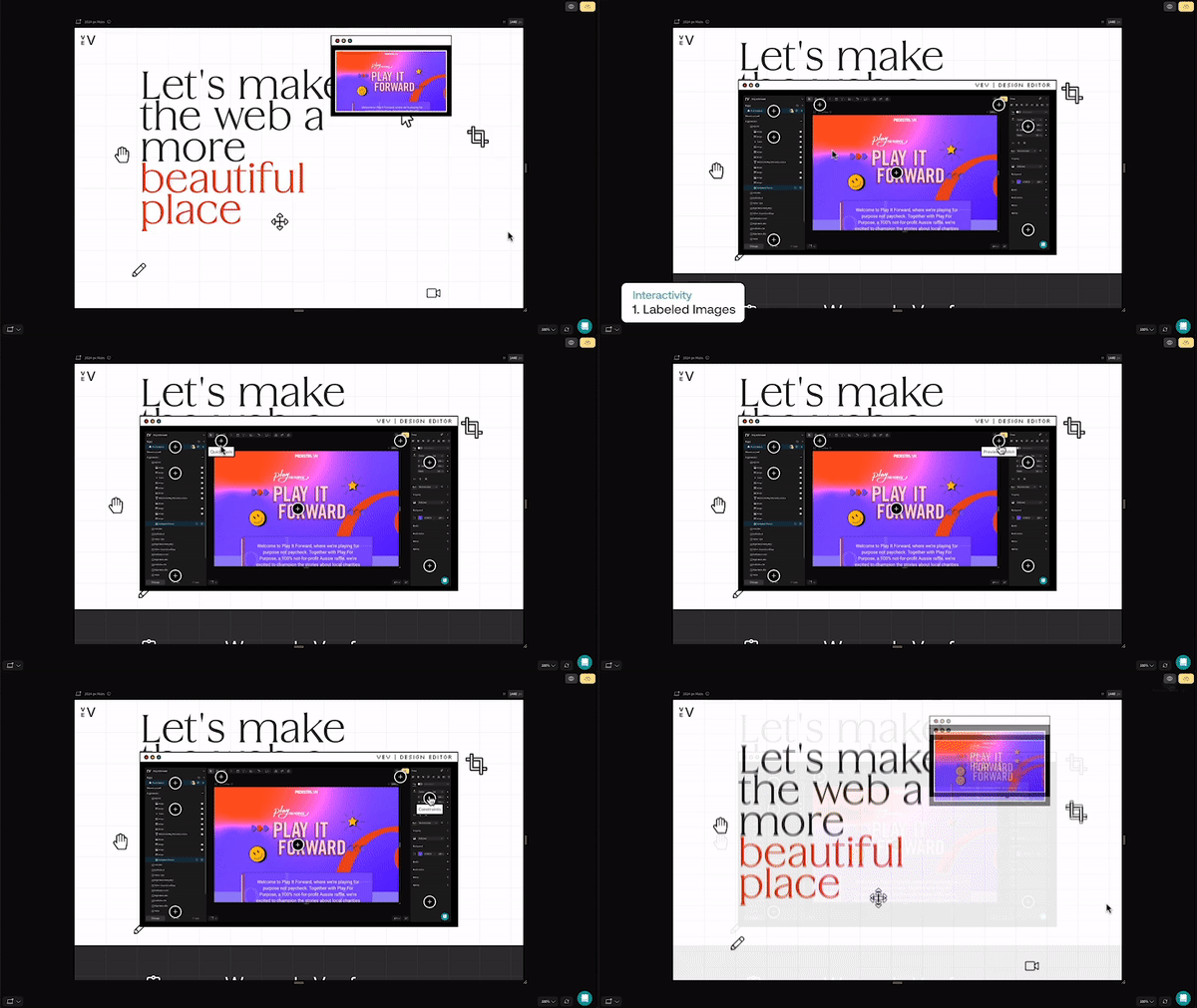
Labeled Images are exactly as they sound: images with clickable labels. This Vev element is great for creating hotspots on a map or highlighting features of a product. You can even add personalized tooltips and reveal content to make it look exactly the way you want it to.
Show/Hide
Show/Hide is an add-on that you can attach to elements like images and text to trigger the appearance of different pieces of content. Just click a target element, and then click the little puzzle-piece icon in the top bar. This will open Vev’s library of add-ons. Selecting Show/Hide will attach it to the element and open a menu where you can play around with trigger settings.
3D Object
Vev’s 3D Object element is great for adding instant wow factor to your site. The render of the little spaceman below is interactive, so you can click and drag him around to view different angles, zoom in and out, and even set up hotspots to highlight information about his suit.
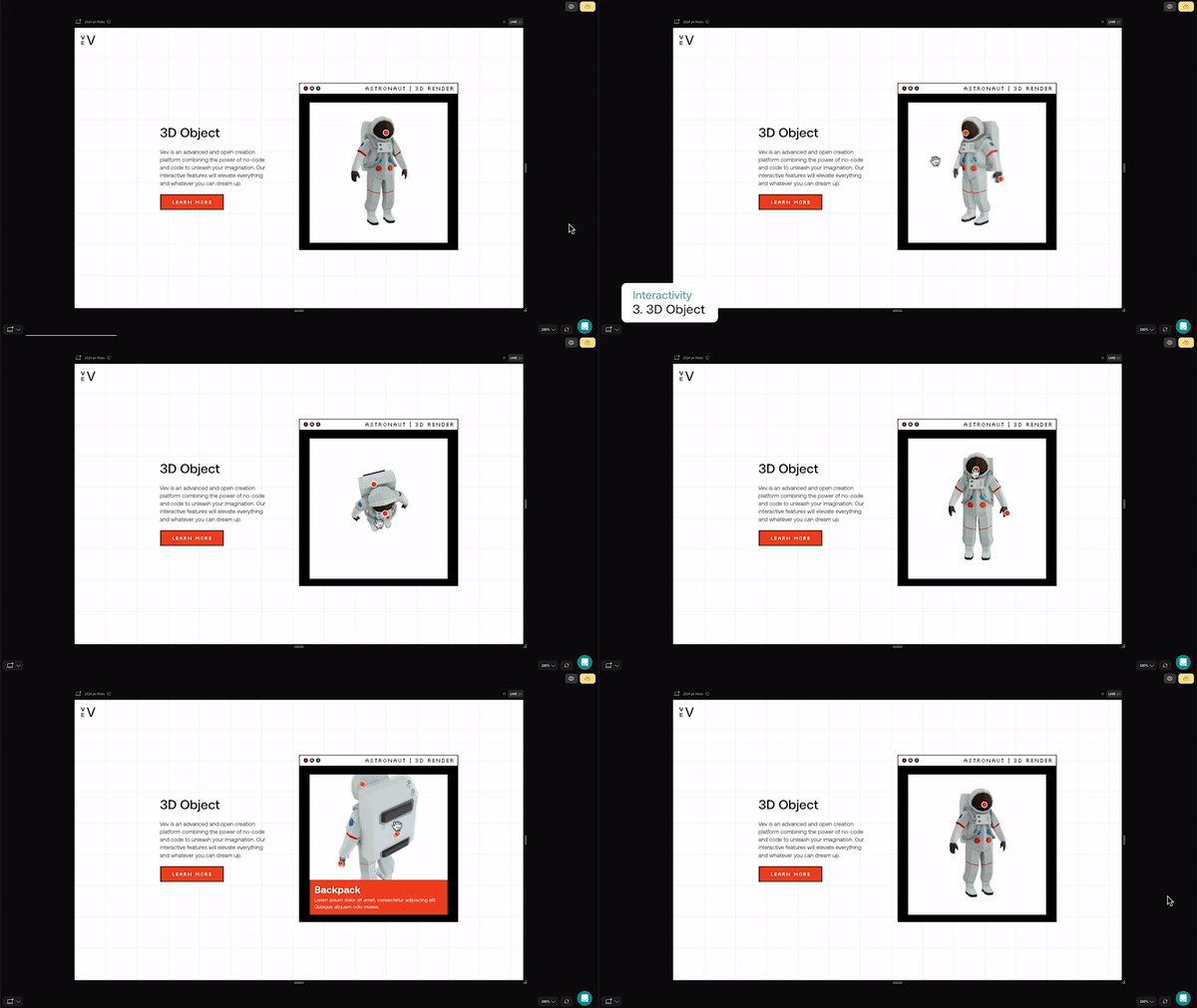
Image Compare
Vev’s Image Compare element adds another level of visual storytelling to your project, creating an interactive before and after effect. This one is really popular for showcasing the inside of a product or the effects of climate change. In this example, we’re using it to show the inside of a spaceship.
Carousels
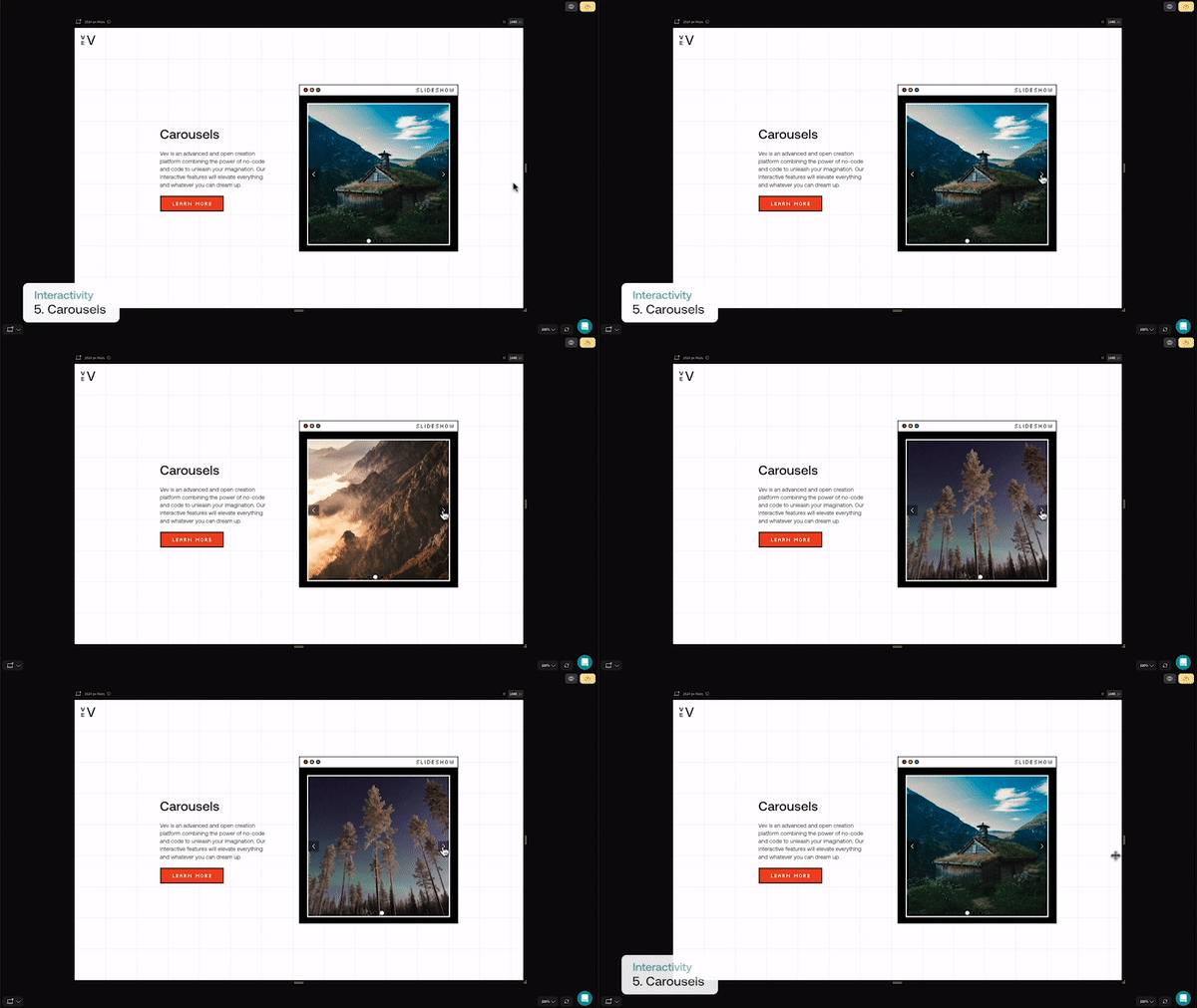
Carousels are a great way to showcase imagery and information—they condense information into a smaller section of your page while also offering interactivity. In Vev, there are a handful of different types of carousels to play with, including Image Carousel, Card Sliders, 3D hover gallery, and Stats Cards.
Add Fluidity With These Vev Add-Ons
Animation Add-on
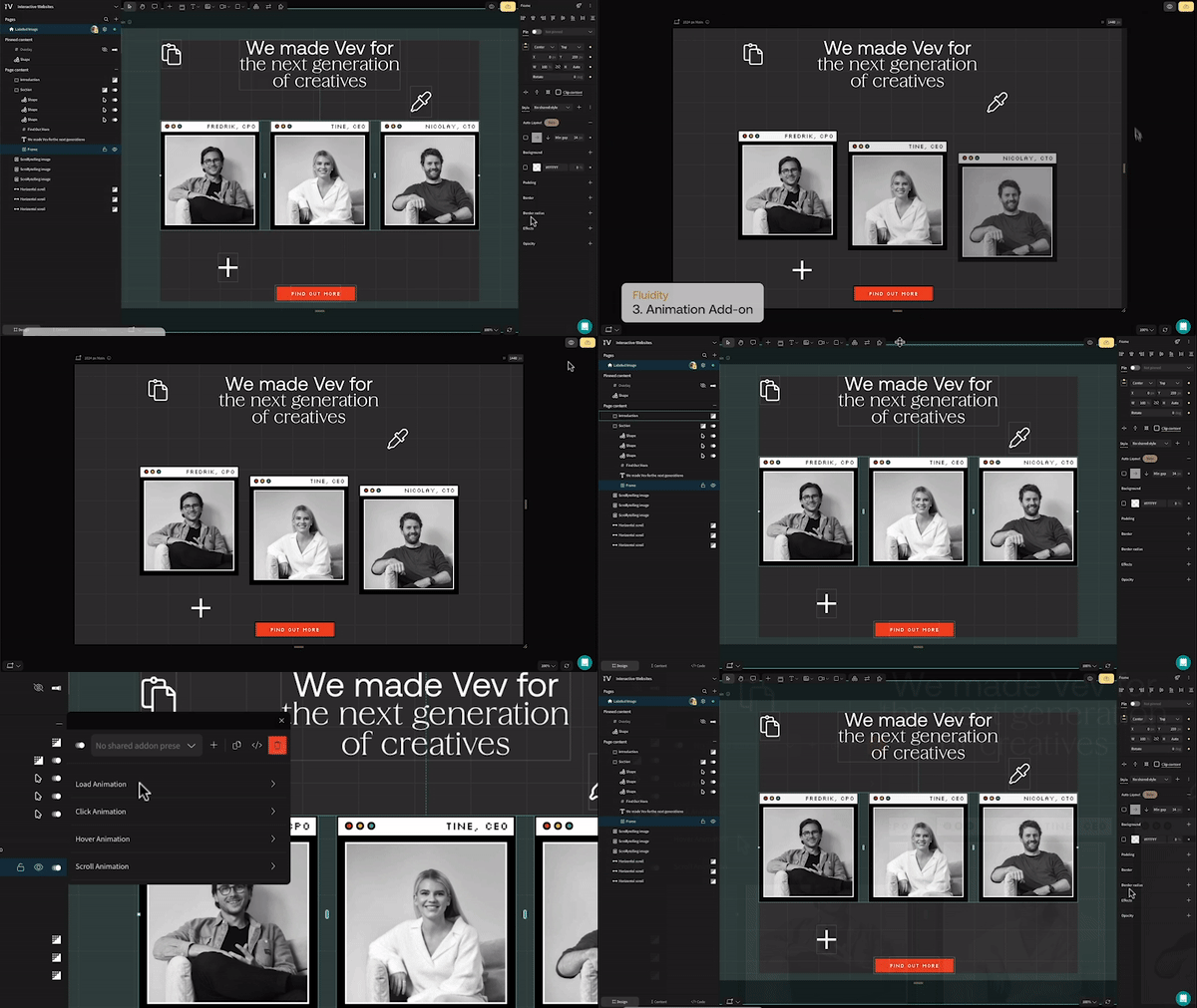
Animations are an obvious and easy way to bring a bit of movement to your page, adding a bit of subtle charm even to the simplest of designs. In Vev, animations are an add-on, so you can attach them to any element. You can then play with four different types of animation triggers: Load, Scroll, Click and Hover, and if you really want you can combine all four.
Scroll Zoom
Another add-on which is especially great for images is Scroll Zoom. The element will scale to a desired size as you scroll down your page—it’s particularly great for creating the illusion of magnification and depth, making an image grow to fit your audience’s screen. You can also set the element to show content outside of the container.
Scrollytelling Sections
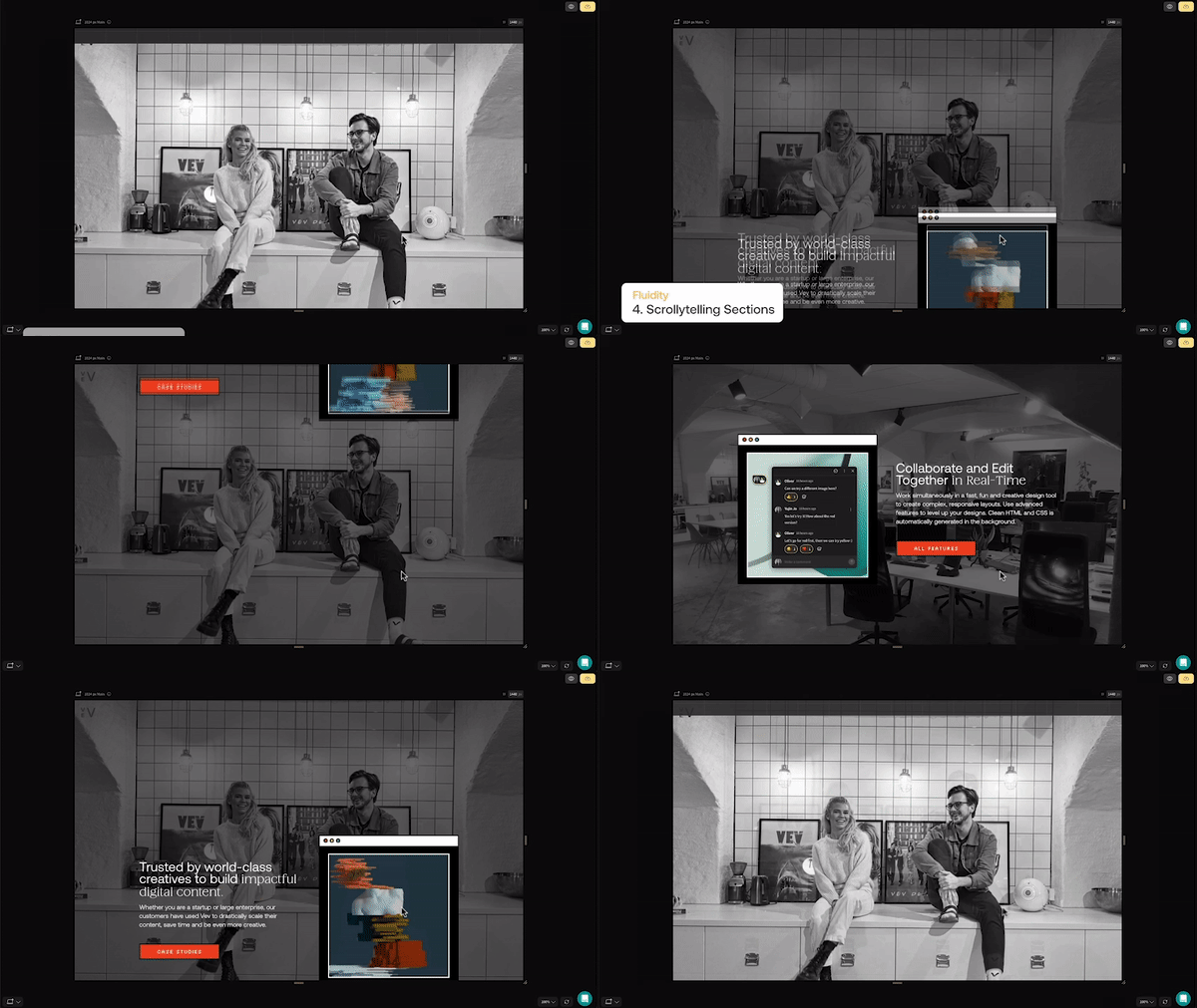
Now for one of the most popular effects among Vevers: scrollytelling. Scrollytelling creates this smooth transition in the background from one image (or video) to another. It provides a great storytelling opportunity too, letting foreground content slide over a hero visual as you scroll. Stack at least two scrollytelling sections back to back to create this effect.
Scroll Speed
The Scroll Speed add-on is a great way to create an almost parallax effect for multiple elements on your page. It lets you set the scroll speed of a specific element so that it moves at a different speed to the page. Set it to a minus value if you want it to move in the opposite direction of your scroll.
Horizontal Scroll
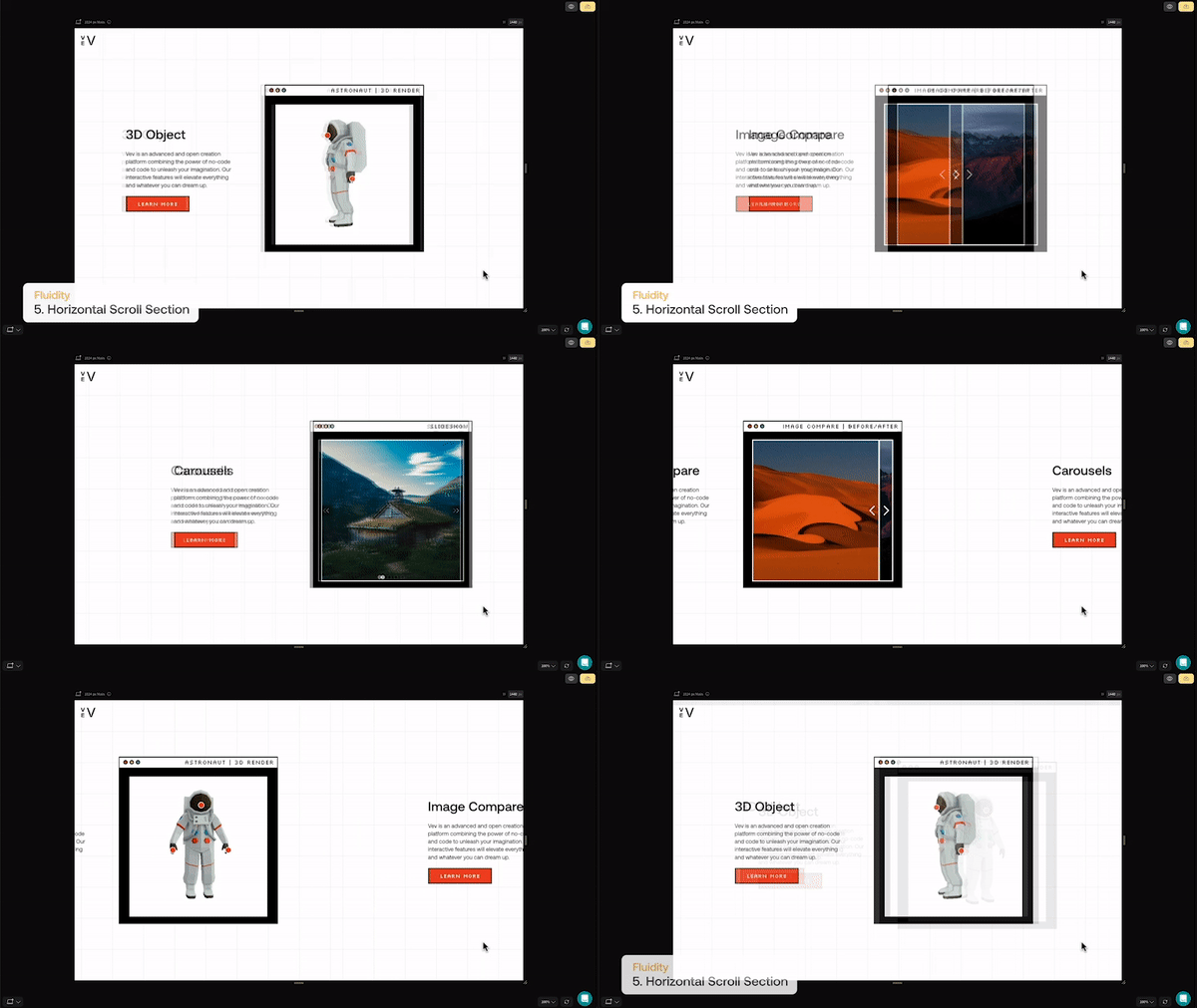
Horizontal scroll sections offer a refreshing way to display content and change up the flow of the page by literally taking it in a different direction. Just like scrollytelling, you’ll need at least two of the same type of sections back to back for this to work correctly. Inside Vev, these sections will look vertically stacked, but just hit “Preview” and…magic.
With these building blocks, you can easily craft a premium-feeling interactive website. Just hit “M” on your keyboard to browse and explore all Vev’s pre-coded interactive design components.
Interactive Websites 101
Discover the tricks, best practices, and design techniques for making immersive web experiences.