How to Build a Parallax Website in Vev
Parallax scrolling may have been around for years, but its magic still has the power to dramatically elevate websites.
Parallax scrolling is an easy way to bring fluidity, depth, and instant wow-factor to your website. You just need to set different layers of content in your web design to move at different speeds to one another—usually with background layers moving slower than ones in the foreground.
This all sounds rather complex, but with no-code web creation tools like Vev you don’t need to know CSS or JavaScript to do this. Like any honest magician, we’ve broken down how to build a parallax website in Vev without coding a thing.
The Vev No-Code Components We’ll Be Using
Multi-Layer Parallax—Use this element to create advanced parallax experiences made up of several image layers
Image Parallax—Use this element to create the classic parallax effect for any image in your design
Scroll Speed— Attach this add-on to make any foreground element scroll at a different speed to the default setting
Click the eye icon or hit “P” on your keyboard as you design in Vev to preview your work as you go—great for reviewing the flow of your animations and getting a sneak peek at your living, breathing creation.
When you finish your Vev masterpiece, publish it to the web with us or connect an existing hosting to easily add it to your existing website.
Build a Parallax Website with Three Effects
Effect 1: Multi-layer parallax
This fancy effect groups several different images and sets them all to move at slightly different speeds for a next-level, immersive parallax effect. To add it to your Vev project, open the Add menu (shortcut: M), search for “Multi-Layer Parallax”, select it, and click anywhere on your canvas to add the section. To change the default mountain scene, simply double-click the section and add your own images for each layer (these will need to be PNGs with transparent elements).
Now the fun part: setting the amount of scroll that occurs for each layer from 0% to 100%. If a layer is set to 100%, it will remain completely static; if set to 0%, it will scroll at the normal page speed. To achieve the parallax effect, all three layers need to use different scroll speeds. We suggest setting the background to a high percentage and incrementally reducing the scroll percentage with each layer the closer you move forward.

Effect 2: Image parallax
This is the most popular type of parallax scroll you will see on a variety of websites. To add this to your design, open the Add menu, search for “Image Parallax”, select it, and click to add it. Then head to the Style panel on the right-hand side and find “background” to change the default images.
Select the “IM” row and then hit the “Change Image” button. From the image gallery modal, you can select an existing image in your project, upload a new one, or choose one from the royalty-free Unsplash or Pixabay galleries.
With your image added, you can now see that you have an image parallax in your project ready to go by scrolling up and down. Just double-click the section to open the configuration modal to adjust the amount of scroll—and you’re done!
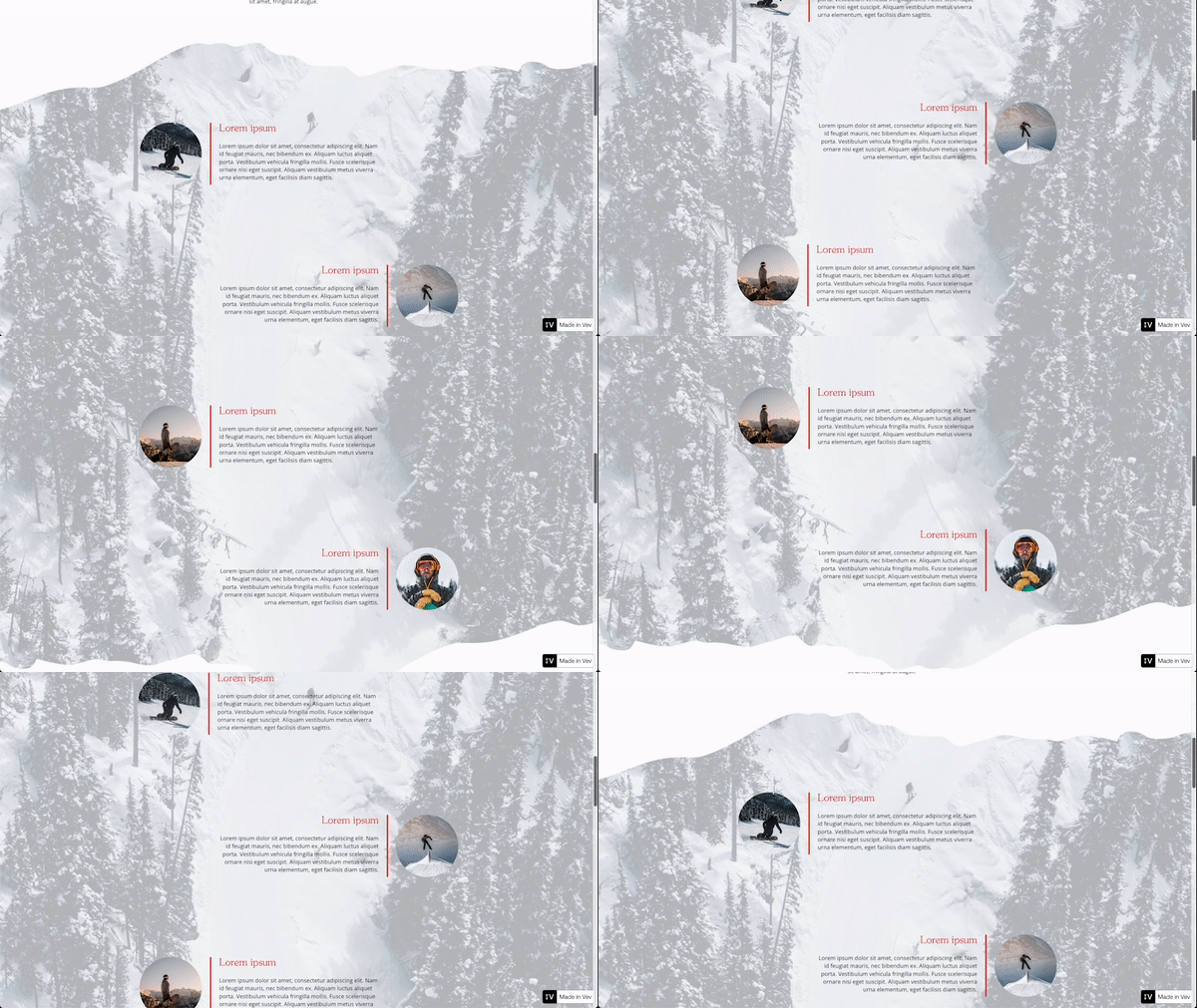
Effect 3: Scroll speed add-on
This add-on can be attached to any element in your project to override the default scroll speed of your foreground content. You can pair this alongside content with a normal scroll speed to create some really interesting effects.
Simply select the element you want to style, click the puzzle-piece icon that appears in the top menu bar, and select “Scroll Speed” from Vev’s add-on library. Once applied, the configuration modal will open allowing you to adjust a few settings, including the scroll speed, with 100% being the normal speed. You can even make an element scroll in the opposite direction by setting this to a minus value.
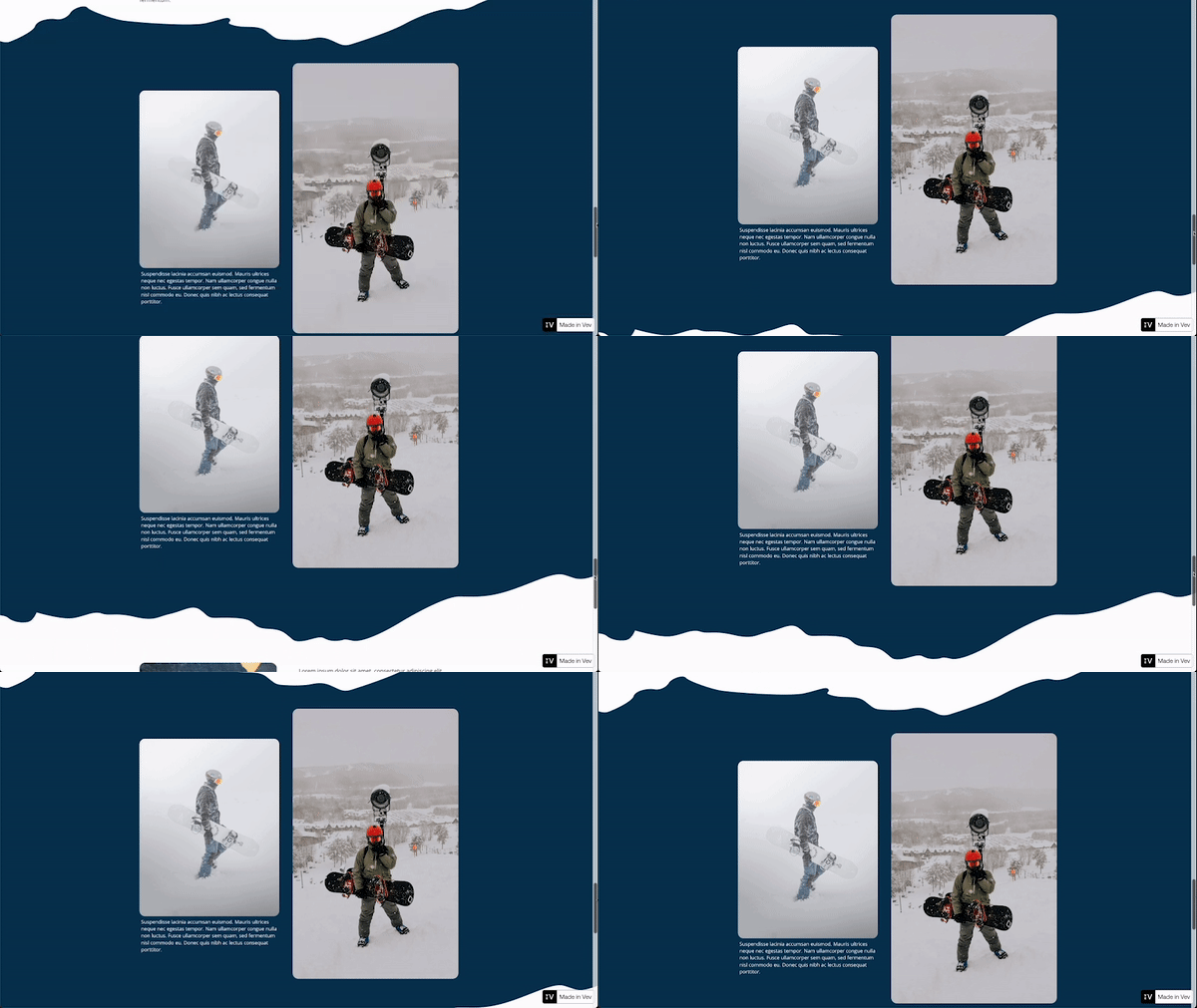
With these building blocks, you can start creating drool-worthy parallax websites. There are also lots more no-code design components in Vev’s library (“M” on your keyboard) that you can experiment with to take things even further—including mouse move parallax.
Parallax Websites 101
Explore ideas, best practices, and tips on how to use the web's most popular scrolling effect.